Clickly Review 2026: Features, Pricing & Is It Worth It?
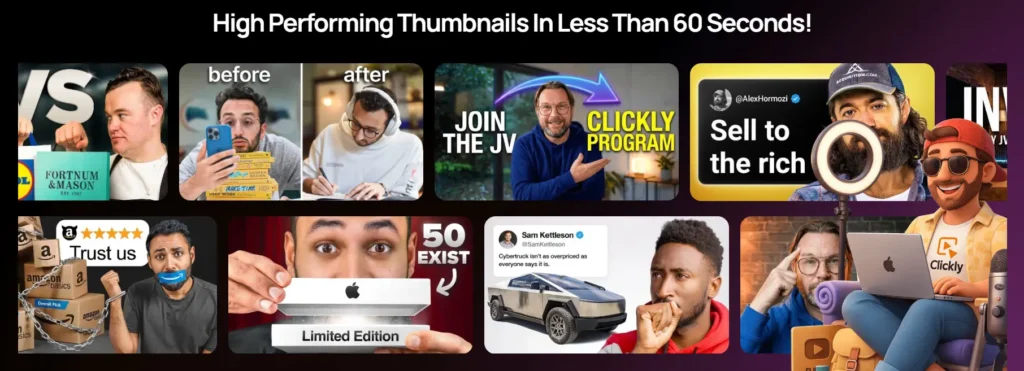
Summary – Clickly is an AI thumbnail generator that creates YouTube thumbnails directly from your video. It analyzes your content, picks key moments, applies proven click patterns, and generates multiple thumbnail options in minutes. It’s best for creators who want to save time, improve CTR, and avoid manual tools like Canva or Photoshop. It comes with a one-time payment and a 30-day money-back guarantee.
What if I say you don’t have to design thumbnails anymore…
No Canva. No Photoshop. No guessing what works.
Sounds unrealistic, right?
That’s exactly what I thought too — until I started using Clickly for my YouTube channel.
Before that, I was doing what most creators do. Trying different designs, tweaking things, spending time… and still not getting consistent clicks. Because the real problem wasn’t effort — it was guesswork.
Clickly changed that for me.
It’s an AI thumbnail generator that creates thumbnails directly from your video, and the results are surprisingly close to what top creators like MrBeast or Hormozi use — simple, bold, and built for clicks.
It’s easy, fast, and removes a lot of the trial and error.
Alright. So, in this review, I’ll show you how it works, what I liked, and whether it’s actually worth trying. But, before that, a quick summary.
1. What is Clickly AI?
Clickly is an AI thumbnail generator built for creators who want more clicks… without designing anything.
No blank canvas.
No trial and error.
You simply paste your video link — and it does the rest.
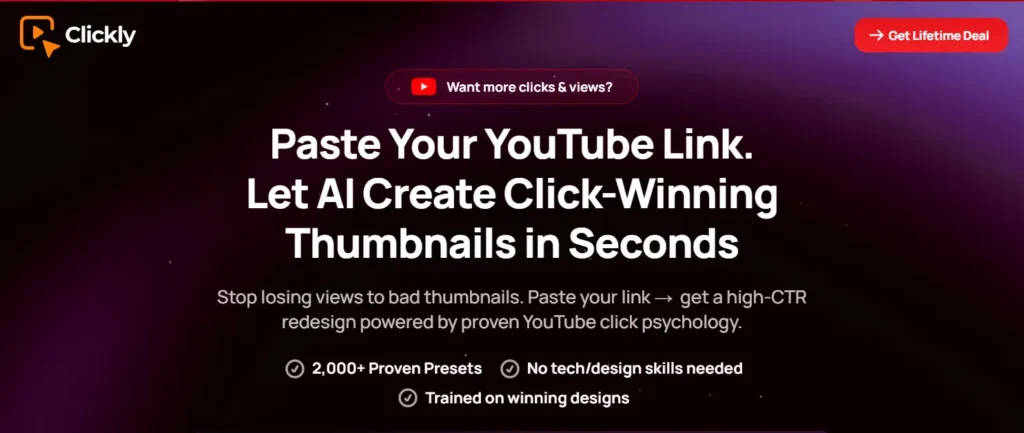
Here’s what it actually does:
- Analyzes your video content
- Picks key moments, expressions, focus points
- Applies patterns from high-performing videos
- Generates multiple thumbnail options
All in a few clicks.
What I liked here is that it’s not just another design tool. You’re not playing with random templates or guessing what looks good.
It works directly with your video. So the thumbnails feel more relevant… and more clickable.
You also get some useful options:
- Different styles/presets to match your content
- Multiple variations to test what works
- Clone yourself for thumbnails (keep your branding consistent)
- Reference thumbnails — paste a video link and generate something similar
That last one is actually powerful. If you see a thumbnail working in your niche, you can use it as a reference instead of starting from zero.
So instead of guessing what might work…
you’re starting with thumbnails that are already built around what works.
In simple terms, Clickly takes your video and turns it into scroll-stopping thumbnails — without design skills or hours of effort.
2. Why Thumbnails Matter More Than You Think?
Before we move ahead, we need to talk about thumbnails. Because everything we’re discussing here… starts from this one thing.
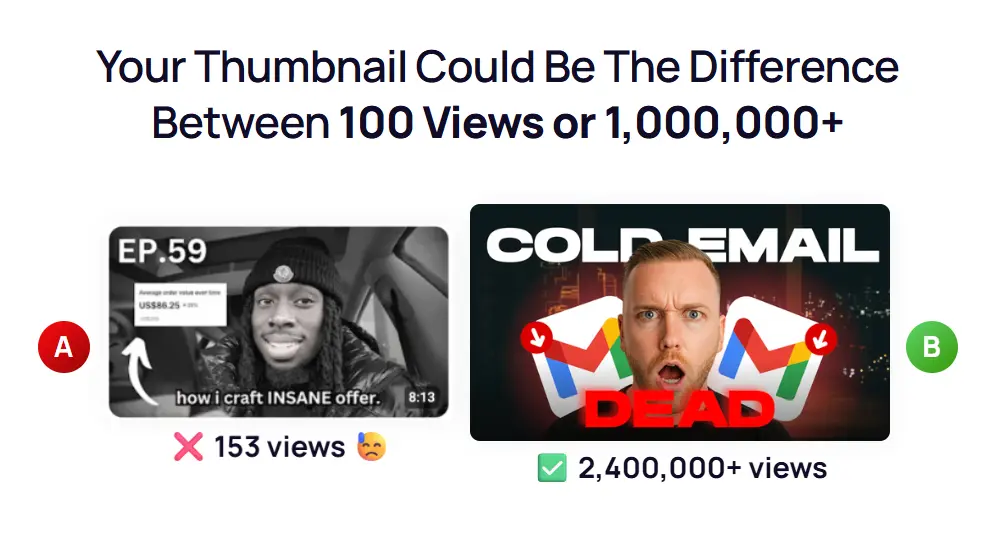
You can have a great video — good content, good editing, everything on point. But if no one clicks, it won’t matter.
And that click? It mostly depends on your thumbnail.
It’s the first thing people notice. Even before your title.
No click → no view.
No view → no growth.
Simple.
And if you look at top creators — MrBeast, Hormozi, Iman Gadzhi — they don’t just “design” thumbnails.
They engineer clicks.
This is where most creators struggle. Not because they’re not trying… but because they don’t really know what works.
So they:
- Try random designs
- Copy big creators
- Keep changing things
And still… results stay inconsistent.
Because thumbnails aren’t just about looking “good”.
They’re about:
- Curiosity
- Emotion
- Clear focus
The kind of things that make someone stop scrolling and click. And without a clear approach… you’re just guessing.
3. How does Clickly AI work? : Step-by-Step
Now let’s understand how Clickly actually works.
The good part is — it’s simple. You don’t need any design skills or complicated setup to get started.
Here’s the basic flow:
1. Paste your video link
You just add your YouTube video link (or even a transcript if you prefer).
2. Let the AI analyze it
Clickly scans your video to find key moments, expressions, and focus points that can work well in a thumbnail.
3. Choose your settings
You can select the aspect ratio (long video or short), pick a preset style, and even add your own image if needed.
4. Generate thumbnails
Click on generate… and within a few seconds, you’ll get multiple thumbnail options.
That’s it. No designing. No guesswork.
And if the result isn’t perfect, you’re not stuck.
You can:
- Regenerate again
- Try different presets
- Use reference thumbnails for better direction
So instead of spending hours designing just one thumbnail, you get multiple options in minutes — and pick what works best.
4. Clickly Demo (Inside Dashboard Walkthrough)
Let me quickly show you how it looks inside the dashboard.
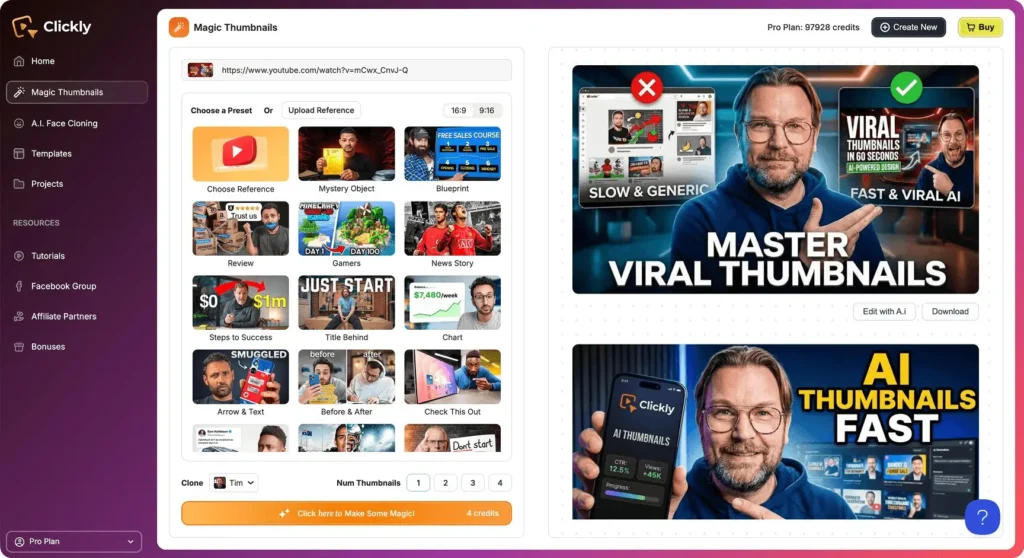
Once you log in, you’ll see a clean interface. Nothing confusing. Everything is easy to find.
First, go to Magic Thumbnails and click on Create New.
Now you have two options — you can either paste your video link or add the full transcript. Most of the time, the video link works perfectly.
After that, click on Analyze & Edit Video.
Next, choose your aspect ratio. If it’s a normal YouTube video, go with landscape. For Shorts or Reels, select vertical.
Then you’ll see different preset styles. There are quite a few options here, but you can start with something simple like Mystery.
You also get the option to clone yourself for the thumbnail, which is useful if you want to keep your face consistent across videos. If not, you can just upload an image.
Once everything is set, click on Create.
Now select how many thumbnails you want — 2 or 3 — and hit Generate.
Give it a few seconds…
And you’ll get your thumbnails.
They usually look clean, modern, and attention-grabbing — the kind of thumbnails you actually see on high-performing videos.
And if you’re not fully satisfied, you’re not limited.
You can generate again, try different presets or even use reference thumbnails by pasting another video link and creating something similar.
So overall, the process is quick, simple, and doesn’t feel overwhelming at all.
5. Key Features of Clickly
Now let’s talk about what you actually get inside Clickly — and how these features help in real content creation.
a) AI Thumbnail Generation
This is the core feature.
You paste your video link, and it automatically creates thumbnails from your content. No designing, no blank canvas, no confusion about where to start.
It just simplifies the whole process.
b) Multiple Variations for Testing
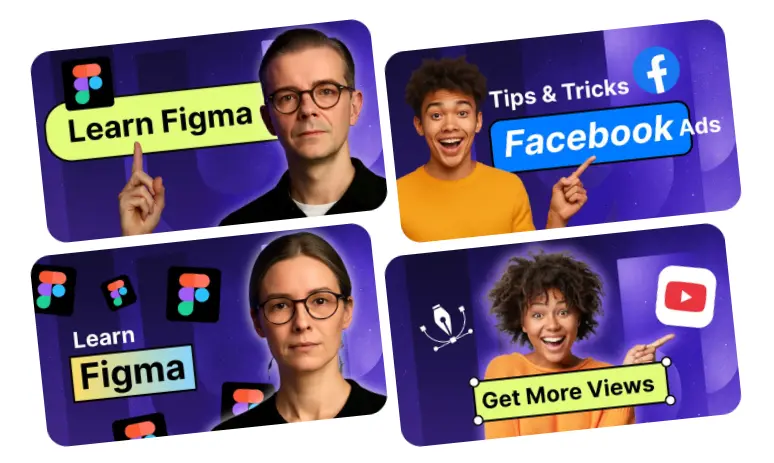
Instead of relying on one thumbnail, you get multiple options.
And this matters more than people think.
Sometimes a small change — expression, text, angle — can completely change your CTR. So having options makes it easier to test and pick what actually works.
c) Built from Your Video Content
Everything is generated from your video itself.
So the thumbnails don’t feel random or disconnected. They match your content, which makes them more natural and believable.
d) Viral Presets & Styles
Clickly gives you different preset styles, including ones inspired by viral thumbnails.
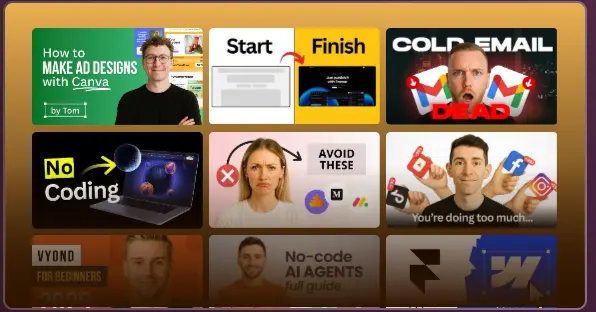
You don’t have to figure out “what looks good” — you can just pick a style and start from there.
Simple. Fast. Effective.
e) Psychology-Based, CTR-Focused Thumbnails
This is where it gets interesting.
The thumbnails aren’t just designed to look nice — they’re built around things that actually make people click.
Like:
- Facial expressions
- Contrast
- Focus points
- Curiosity
The same patterns you see in thumbnails from top creators.
f) Clone Yourself (Very Powerful for Branding)
This is one feature I personally found very useful.
You can upload your image or “clone” your face into thumbnails, which helps in building a consistent look across your videos.
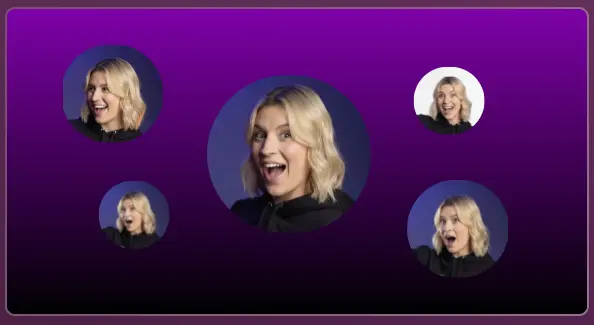
And if you look at creators like MrBeast, Hormozi, or even many fast-growing YouTubers — they use their face again and again. It builds recognition.
I’ve tried this myself with my thumbnails, and it actually makes a difference. Your content starts to feel more “you”, instead of random designs every time.
It’s a small thing… but powerful. Because over time, people don’t just click thumbnails. They start recognizing you.
g) Reference Thumbnails (Use What’s Already Working)
Another feature I liked.
You can paste a video link, and Clickly generates thumbnails inspired by it.
So if you see a thumbnail working well in your niche, you don’t have to guess how to recreate that style. You can use it as a base and build your own version.
Overall, the features are not complicated or overwhelming.
They’re simple… but focused on what actually matters — getting more clicks without wasting time.
6. My Experience Using Clickly
Now coming to my personal experience.
Before Clickly, I used to spend hours on thumbnails… and still end up with something average. I even tried hiring designers on Fiverr, but honestly, the results weren’t great. Paid money, asked for revisions… and still felt like half-done work.
And after a point, it just feels frustrating.
So I went back to doing it myself — again guessing what works.
That’s where Clickly helped.
Now I just paste the video and get multiple thumbnail options in minutes. It removes that “what should I do?” phase completely.
I also tried the clone feature, and it actually makes a difference. Using your face consistently — like creators such as MrBeast or Hormozi — helps build recognition over time.
It’s not perfect every time, but since it’s fast, you can regenerate and move on.
Overall, it saved me time… and a lot of unnecessary effort.
7. Who Should Use Clickly?
Clickly is not for everyone… but for the right people, it can be very useful.
If you fall into any of these, it will make sense for you:
- YouTubers who are struggling with low CTR or views
- Content creators who don’t want to spend hours designing thumbnails
- Beginners who don’t know what actually works
- Affiliate marketers or faceless creators who want faster output
Basically, if you’ve ever felt…
“my content is good, but I’m not getting clicks”
This tool is built for that exact problem.
It saves time.
Removes guesswork.
And gives you a better starting point.
Especially if you’re tired of spending time on thumbnails… and still not seeing results.
8. Who Should NOT Use Clickly?
Now let’s be real — this tool won’t be ideal for everyone.
If you’re someone who enjoys designing thumbnails from scratch, or you want full creative control over every small detail, then this might not be for you.
Also, if you already have a professional designer or a strong system that’s working consistently, you may not feel the need for it.
Clickly is more about speed and simplicity.
Not perfection.
Not pixel-level control.
So if your focus is saving time and getting decent, click-worthy thumbnails quickly — it fits well.
But if you want complete control over design, you might prefer sticking to manual tools.
9. Clickly AI Pricing — Which Plan is Right for You?
Now let’s talk about pricing — because this is where it stands out.
Clickly comes with a one-time payment.
No monthly subscription.
No recurring charges.
You pay once… and you can keep using it.
On top of that, they offer a 30-day money-back guarantee.
So you can try it on your own videos, test the thumbnails, and see if it actually works for you. If not, you can simply ask for a refund.
Low risk. No pressure.
Sometimes, they also include bonuses or extra features depending on the offer — like additional presets, tools, or upgrades. So it’s worth checking what’s included at the time.
👉 If you want to check the latest price and current offer, click the button below.
Pricing may change, so it’s better to check the latest deal directly.
Overall, it’s a pretty straightforward deal.
Pay once. Try it. Keep it if it works.
10. Pros and Cons
Here’s a quick breakdown so you can decide faster:
Pros | Cons |
One-time payment (no monthly subscription) | Limited control compared to manual tools |
Saves hours of design time | AI may need regeneration sometimes |
Very beginner-friendly | Not for advanced designers |
Generates multiple thumbnails for testing | |
Works directly from your video (more relevant) | |
Clone feature for personal branding | |
Reference thumbnails to copy what’s working | |
Based on high-performing, click-focused patterns |
11. Real Use Case (How It Helps in Real Life)
Let’s make this practical.
Imagine you just finished a video.
Now you have two options.
You open Canva or Photoshop… start designing from scratch, adjusting things again and again. Or you hire a designer, wait for delivery, ask for revisions, and hope it turns out right.
Either way… time goes. Effort goes. Sometimes money too.
Now with Clickly, the process is much simpler.
You paste your video link.
Generate thumbnails.
Pick the best one.
Done.
In a few minutes.
And the quality is actually good. Clean, focused, and very similar to what you see from top creators — not random or low-effort designs.
So instead of spending 1–2 hours (or paying someone), you get ready-to-use thumbnails quickly.
More consistency.
More content.
More chances to get clicks.
Without getting stuck in design.
12. Is Clickly Worth It?
So, is Clickly actually worth it?
If you’re struggling with thumbnails… then yes, it makes a lot of sense.
It’s not trying to replace professional design tools completely. But it does solve a very real problem — time + guesswork.
Instead of spending hours designing or depending on others, you get a faster and simpler way to create thumbnails that are already built for clicks.
That’s the real value.
It’s especially useful if:
- You’re posting consistently
- You don’t enjoy designing
- Or you just want better thumbnails without overthinking
At the same time, if you want full creative control or highly customized designs, manual tools might still be better for you.
But for most creators…
Clickly is a practical shortcut.
Not perfect.
But definitely useful — especially if thumbnails are your weak point.
Wrap Up
At the end of the day, thumbnails decide whether your video gets clicked or ignored. And if you can simplify that part… everything else becomes easier.
👉 If you want to try Clickly for yourself, click the button below and see how it works. You can test it risk-free and decide if it fits your workflow.