
Artspace Ai Review (2026): Don't Buy Before Read It
Summary – Artspace AI is a powerful text-to-image generator and editor that lets you create, customize, and upscale images using AI. You can generate high-quality artwork from prompts, erase or add objects, extend images, remove backgrounds, and more — all on an infinite canvas. It’s perfect for bloggers, designers, students, and content creators who want full visual control without needing Photoshop-level skills.
Are you lost in the endless list of AI image generators like DALL·E, Midjourney, ChatGPT, Leonardo, and Bing?
What if I told you there’s one tool that does more than just create images?
I’m talking about Artspace AI — a text-to-image generator that can do mucy more that a absic image generator.
It can –
- Generate
- Edit
- Face swap
- Remove Background
- Extend
- Upscale
and do much more with just a few clicks. Basically, it can easily replace your photographer, stock site subscription and the designer.
I’ve used it for the past few months, and the results honestly surprised me. It took me a few tries to master it.
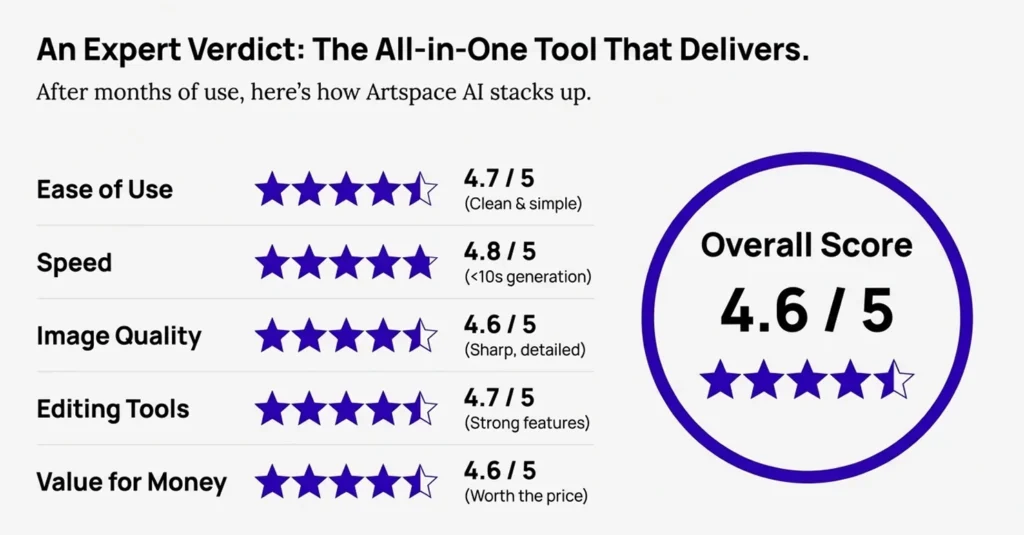
So, in this review, I’ll quickly walk you through what Artspace AI is, how it works, and why it might be the all-in-one visual tool you’ve been looking for.
1. What is Artspace AI?
Artspace AI is a next-gen text-to-image generator or you can call it the ai Image suite, designed for creators who want more than just basic image generation.
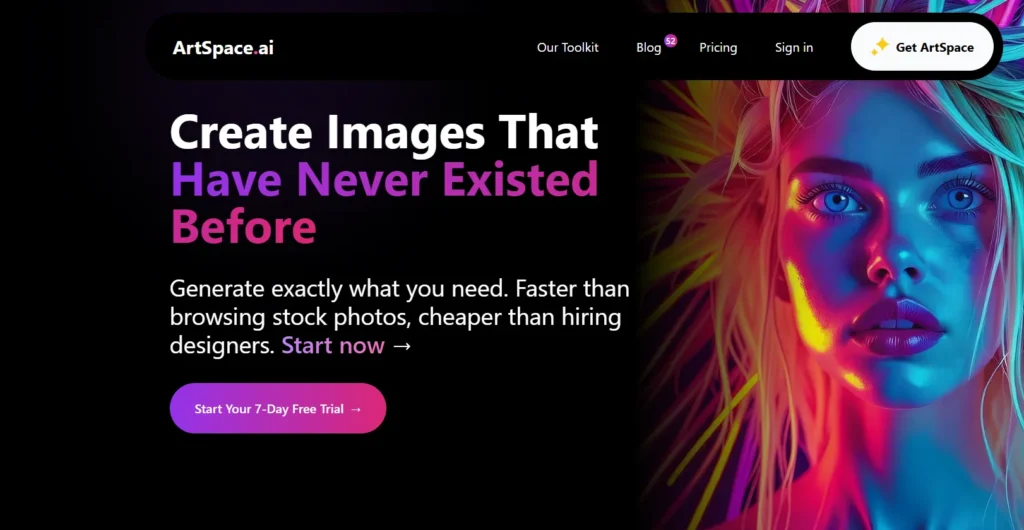
At its core, it lets you turn simple text prompts into high-quality images using AI. But what really makes Artspace stand out is its infinite canvas and powerful editing tools.
Just like the name suggests, Artspace is a space for art — and that space is literally limitless.
But it doesn’t stop for generations. Artspace AI also gives you full creative control with features like:
- Inpainting – to edit specific parts of an image.
- Image Extender – to expand your artwork beyond its original frame.
- 4K Upscaling – for ultra-sharp, high-resolution visuals.
- Background removal – for easy cutouts and cleaner compositions.
- Face swapping – to change characters or styles effortlessly.
- Prompt extractor – upload any image, and it tells you the text prompt that could recreate it.
Whether you’re a YouTuber working on thumbnails, a blogger who needs custom art, or a designer who wants fast visual concepts — Artspace combines creation and editing into one clean, easy-to-use platform.
2. Who is Artspace AI For?
Artspace AI isn’t just for professional designers or digital artists. With its features, learning curve and result – anyone who needs visuals fast and wants creative control without learning complex software can use it.
Here’s who will benefit most from using it –
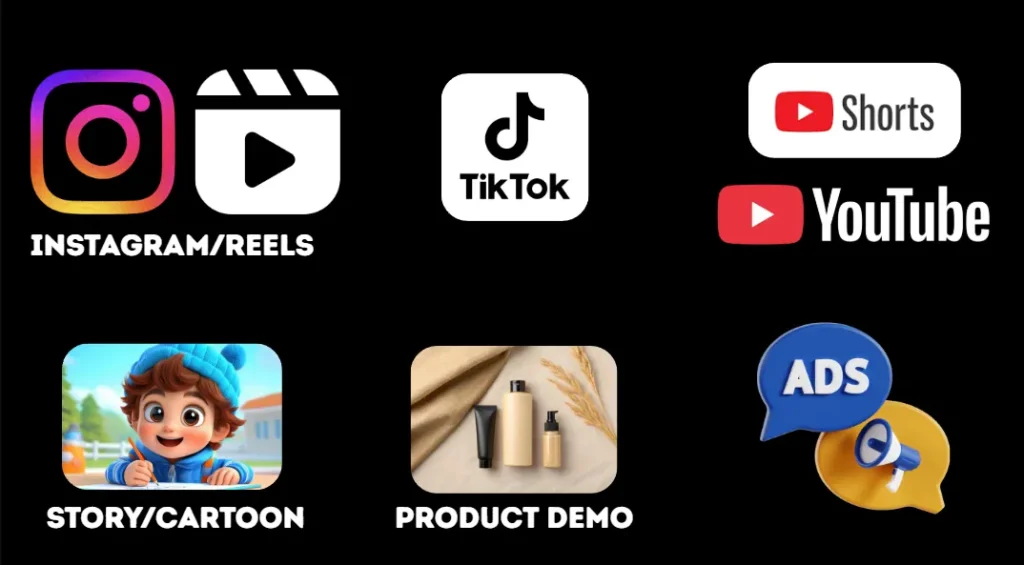
- YouTubers – Easily create eye-catching thumbnails or concept visuals for your videos.
- Bloggers – Generate unique blog graphics and featured images without relying on stock photos.
- Content creators – From Instagram posts to Pinterest pins, Artspace helps you bring ideas to life quickly.
- Students – Make school projects, assignments, or presentations more creative and impressive.
- Freelancers – Save time and deliver visuals to clients faster without outsourcing design work.
- Social media managers – Create campaigns, product graphics, or even memes on the go.
- Educators – Design visual aids, slides, or posters for lessons and learning material.
- Hobbyists – Even if you’re just exploring your creativity, it’s a fun and easy tool to use.
3. How does ArtSpace AI work? : Step-by-Step
Getting started with Artspace AI is pretty simple. Just follow these steps and you’ll be generating stunning images in no time.
Step 1: Visit the Website

Go to Google and search for Artspace AI or head directly to the official website at Artspace AI.
Step 2: Sign Up for a Free Trial
On the homepage, click on “Get Artspace” to start the signup process.
You’ll be asked to select a plan. Start with the Starter Plan — it offers a 7-day free trial with full access to all features.
To activate the trial, you’ll need to enter payment details.
Here’s a tip: You can use a zero-balance debit card — yes, it works! I used one myself with no balance and the trial still activated successfully.
Just remember to cancel before the trial ends if you don’t want to be charged.
Step 3: Enter the Canvas
Once you’re signed in, head over to the canvas workspace.
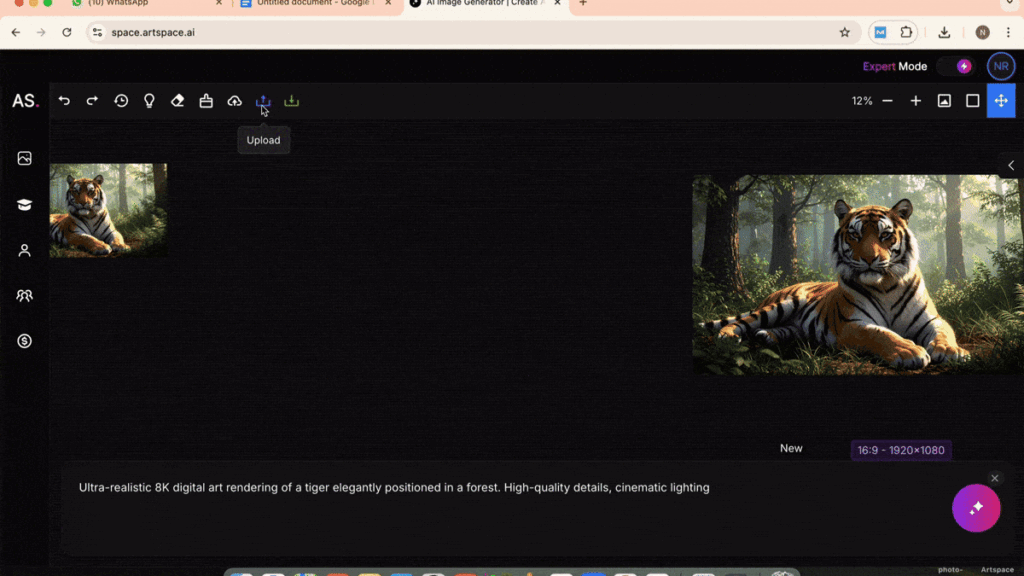
This is where the real magic happens. You’ll see a default square image box (1024×1024 pixels), but don’t worry — you can resize it freely.
Click on the top-right corner and switch to “Expert Mode” for full access to tools and smoother workflow.
Step 4: Generate Your First Image
Scroll to the prompt box at the bottom of the screen.
You’ll see a default prompt — just replace it with your own.
For example: “Ultra-realistic 8K digital art rendering of a tiger elegantly positioned in a forest. High-quality details, cinematic lighting.”
Hit Enter or click Generate, then wait about 10 seconds. Your image will appear on the canvas.
You can zoom in, drag it, or reposition it anywhere on the canvas — it’s completely flexible..
Step 5: Try Multiple Images and Layouts
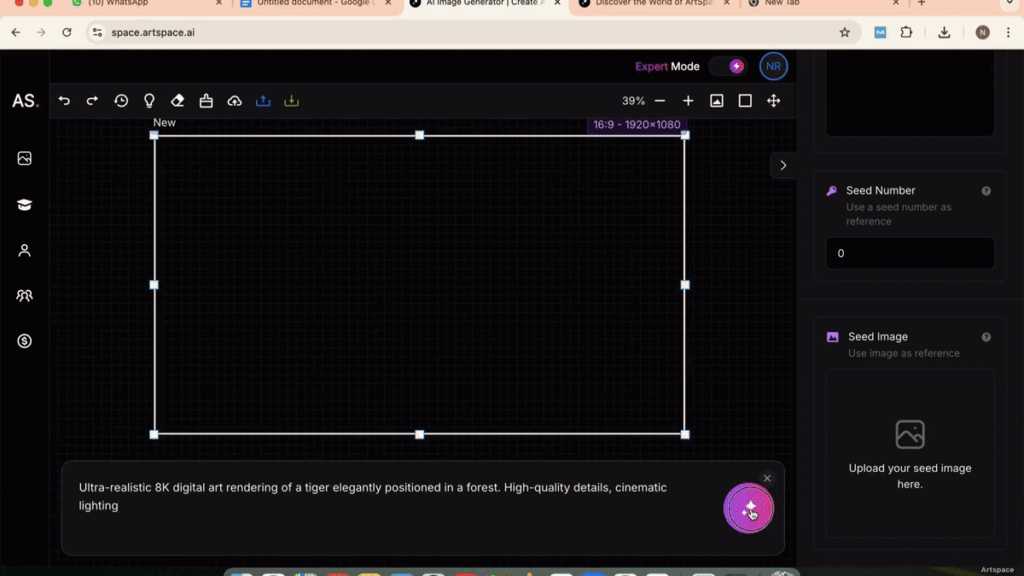
Want to create more images? Just drag out new generation boxes anywhere on the canvas and add a new prompt.
You can build entire storyboards, characters, or concepts in one workspace
4. Magic AI Tools in Artspace AI
Once you’ve generated your image, the real fun begins with Artspace’s Magic Tools — a set of powerful AI features that let you take your visuals to the next level. Just click on any image and select “Magic Tools” to access these options:
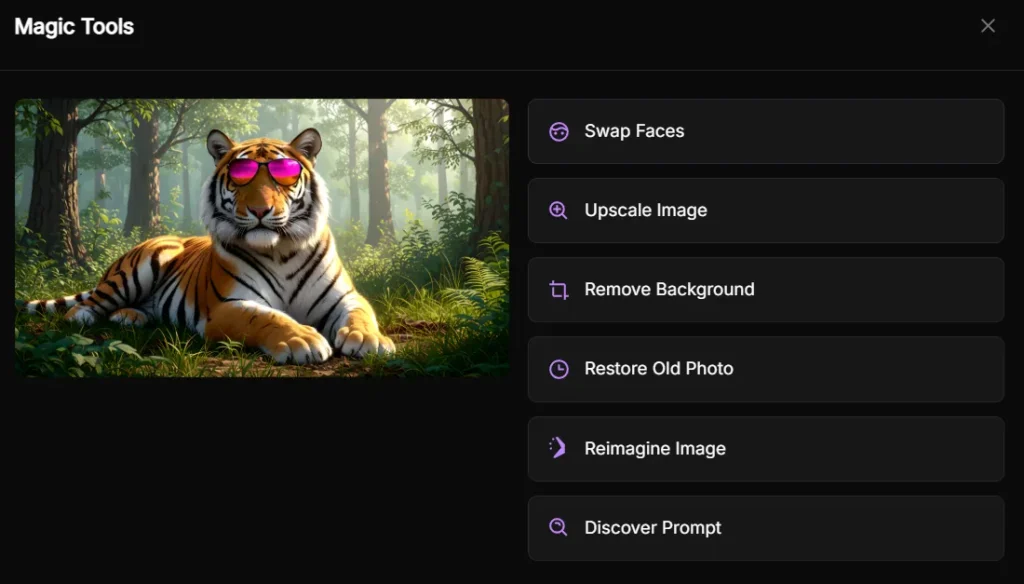
1. Upscale Image
Want sharper, higher-resolution results?
I’ve used it multiple times — just one click, and Artspace boosts the image quality by enhancing details and removing blur. It doesn’t just make it bigger — it actually makes it look cleaner and clearer.
This is super helpful if you’re planning to use the image for YouTube thumbnails, blog banners, print designs, or even client work.
Instead of starting over with a new image or jumping to another tool, you can instantly turn a good image into a great one — right inside Artspace.
2. Remove Background
You also don’t have to visit another tool to remove the background of an image. This tool can remove the background of your image with just one click. Just click on the image, choose magic tools and hit the background remove.
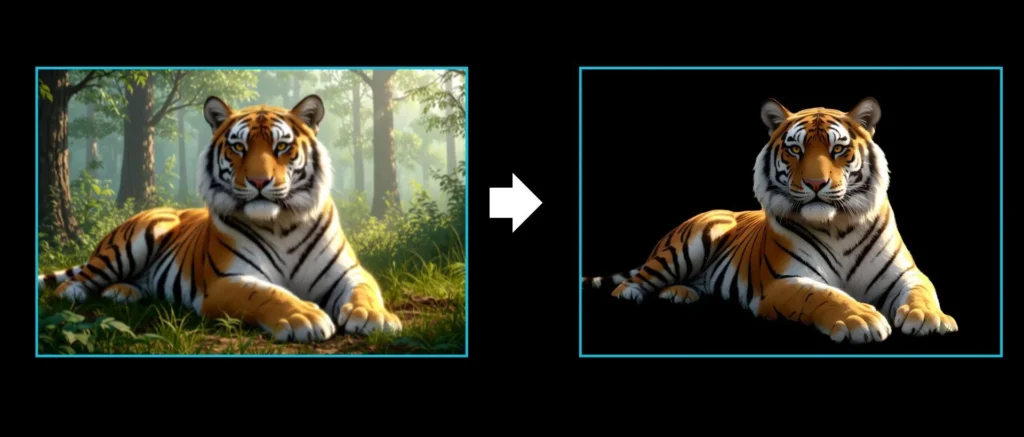
It’s great for creating PNG-style cutouts, placing your subject on a new background or designing posters without distractions.
3. Restore Old Photo
Upload any old, blurry, or low-quality photo — Artspace uses AI to fill missing parts, fix blurry areas, and enhance the image into high quality. With this feature, your image will get a second life.
This feature is Ideal for old photos of your and your family etc to relive those memories into a high quality image. Also for vintage images, scanned documents etc.
4. Reimagine (Generate Variations)
Click Reimagine, and Artspace will generate another variation of your selected image. It’s a powerful way to explore different styles, outfits, backgrounds, or artistic interpretations — all from a single reference image.
5. Image to Text / Prompt Extractor
If you have a reference image and want to know what type of prompt the image is created from – to generate something similar style. Then, the image to text feature will help you.
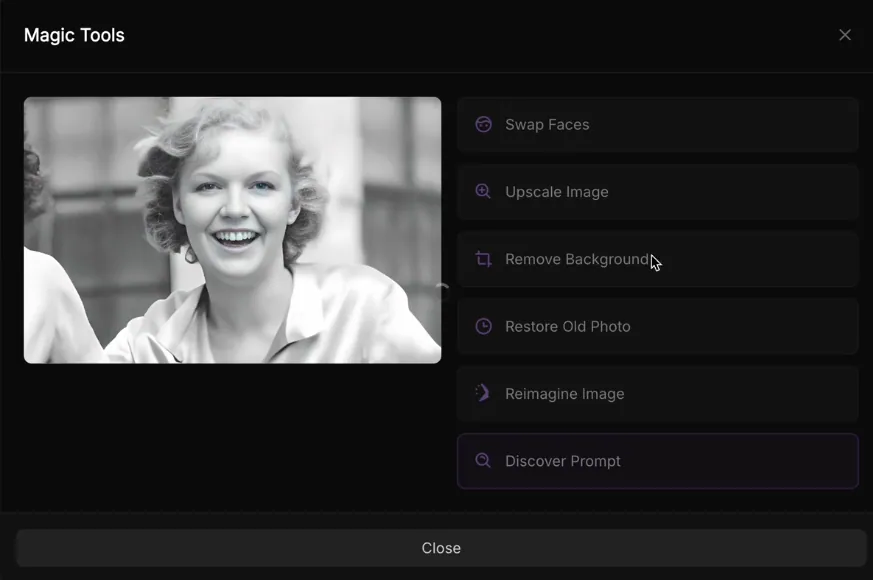
Just Upload the image, click on it, choose prompt extractor and Artspace will tell you the exact text prompt that could generate a similar visual.
Perfect for learning how prompts work or recreating something you saw online
5. AI Editing with Prompts (Inpainting)
Artspace also supports image editing using AI prompts — a technique known as inpainting. Here’s how you can do it:
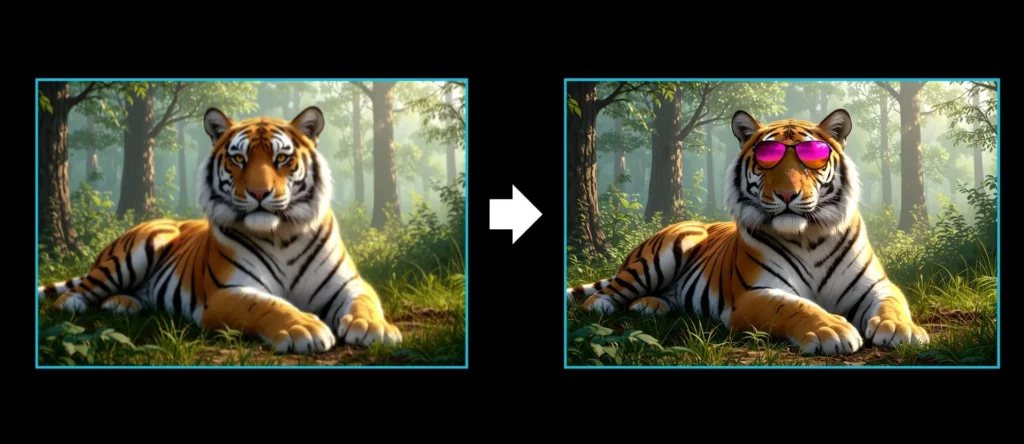
- Select the Eraser Tool from the top toolbar.
- Brush over the part of the image you want to change. For example, erase the eyes of the tiger character.
- Drag the prompt box onto that specific area and shrink it to fit.
- In the prompt box, type what you want to appear. Example: “Tiger wearing pink sunglasses.”
- Click Generate, wait a few seconds, and you’ll see the change applied directly to the image.
It’s fast, accurate and super fun — perfect for creative edits or fine-tuning your visuals.
6. Hidden Gem: Image Extender
Artspace AI also lets you extend your images without any noticeable break or mismatch — and it does it seamlessly. Like these images –
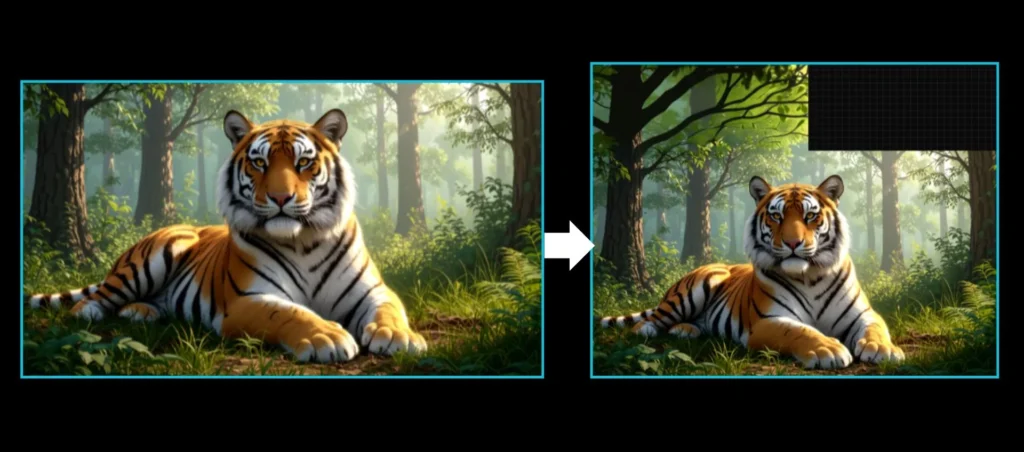
Here’s how to use the Image Extender:
- Choose the image you want to extend.
- Create a new generation box by dragging the corner — make sure it touches the side of your existing image and the corresponding area where you want your image to be extended.
- Leave the prompt box empty.
- Click Generate, and Artspace will intelligently expand the image in that direction, matching the original style and details.
It’s perfect for adding space around portraits, building scenes, or creating wide-format visuals like banners or cinematic shots.
7. Artspace AI Pricing — Which Plan is Right for You?
Artspace AI offers three pricing plans, and the best part is — every plan comes with a 7-day free trial. You can test all features without limits before committing.
Here’s a quick breakdown:
1. Starter Plan
- 500 image generations
- 110+ bonus credits for tools like inpainting, background removal, face swap, 4K upscaling, and more
Best for: Beginners, bloggers, YouTubers, or anyone who needs visuals occasionally but wants full creative control.
2. Pro Plan – Double the power
- 1000 image generations
- Higher bonus limits for all AI tools (up to 100 for each feature)
Best for: Freelancers, content creators, and small teams who work on multiple projects and need more credits monthly.
3. Unlimited Plan – Truly unlimited
- No image generation limits
- Unlimited access to all features and AI tools
Best for: Agencies, businesses, and full-time creators who produce a high volume of visual content regularly.
💡 Tip: You can start with the Starter Plan, try the free trial, and upgrade later if you need more.
Also, remember — you can sign up with a zero-balance debit card to activate the trial safely and without any charges.
8. Pros and Cons
| Pros ✅ | Cons ❌ |
| Easy to use with a clean, modern interface | Canvas navigation can feel clunky at first (need to click move tool) |
| Infinite canvas to work on multiple images at once | Image fit and zoom controls can be slightly unintuitive |
| Fast image generation (usually under 10 seconds) | Accessing image history is a bit complicated |
| Advanced tools like inpainting, upscaling, face swap, and background removal | Image quality highly depends on the quality of your prompt |
| No size or canvas limits – great for batch creation | Some features take time to master if you're new to AI tools |
| 4K image upscaling and prompt extractor included | No completely free plan (only a 7-day trial with card required) |
| Works with multiple AI models for varied styles | |
| Great for content creators, marketers, educators, and more | |
| Affordable pricing with a trial and monthly plans |
Final Verdict
If you’re looking for one powerful AI tool that does more than just generate images, Artspace AI is a serious contender.
From ultra-realistic image generation to editing, upscaling, and extending — it gives you the freedom to create and control visuals your way.
Whether you’re a content creator, student, designer, or agency, Artspace can replace hours of manual design work with just a few smart clicks.
It’s fast, feature-packed, beginner-friendly, and actually fun to use. If visuals are a key part of what you do — this tool is 100% worth trying.
⚡ Create better content without any limit and payment issues.
🧠 Let your creativity do the talking — the AI will handle the rest,